
CLIENT REPORTING
White-label SEO reports your clients can understand
Give clients a clear view of their SEO campaign with your agency’s branding. Choose the sections in a PDF report, then share selected campaign information through a read-only client portal.
See the reporting workflow with Robert Long, CEO of Seller’s Bay. Free personal walkthrough. No app account needed to book.
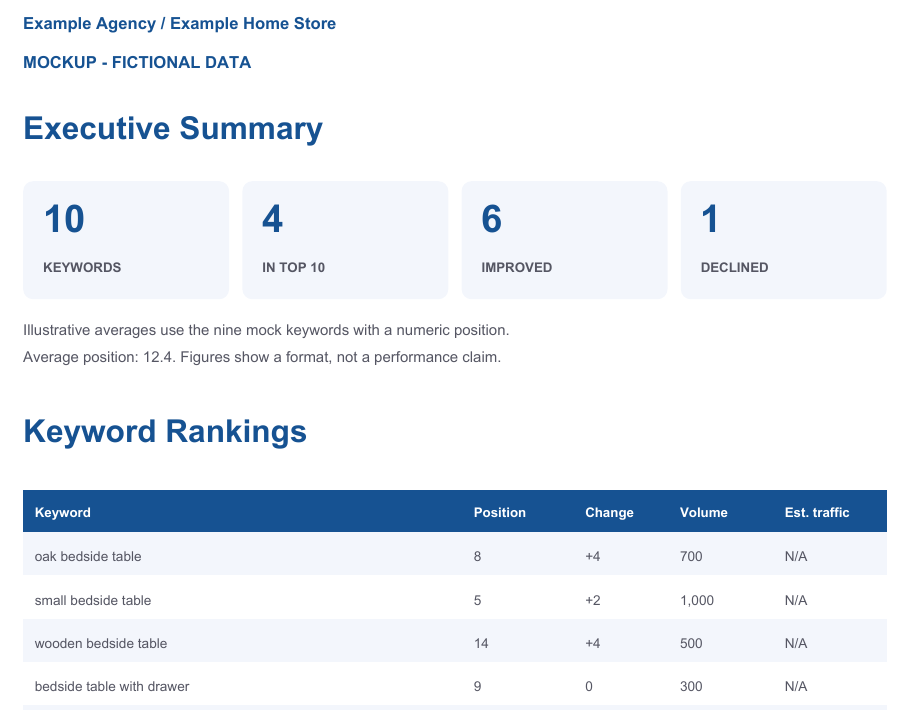
Mockup: fictional data
Example Agency branding and made-up keywords and figures. Illustrates reporting; not client results or an app export.
Your agency brand. Your campaign data.
A white-label SEO report is a client-facing report presented with your agency’s name, logo and colours. Seller’s Bay combines report branding with campaign data and a client portal, so you can decide how to present the work.

Brand the report
Add your agency logo, name, contact details, primary and secondary colours, and footer text. The branding settings also include an option to hide the “Powered by Seller’s Bay App” line on reports.

Choose the PDF sections
Select a campaign, a 30, 60 or 90-day date range, and the report sections. Preview the output before downloading the PDF. Include the information that supports the conversation.

Control client visibility
Share chosen campaigns and client portal sections. Use the “View as client” preview to check the client’s view before explaining where to find their reports and progress.
White-label here means report branding. Seller’s Bay remains the software workspace your agency uses; report branding does not include a licence to resell a renamed version of the application.
Preview a white-label report mockup.
See a fictional Example Agency report for a fictional home store. The two-page mockup shows agency branding, an executive summary and a keyword table. Open the PDF to view it at a readable size.
Every figure is made up. The keywords, positions, changes and volumes are illustrative. This mockup is not a client case study, a performance forecast or a report on Seller’s Bay’s rankings. N/A shows an unavailable metric.
Two-page PDF · No form or email required · Fictional data only
Illustrative layout informed by the verified report builder. Actual exports depend on your selected sections and available data.
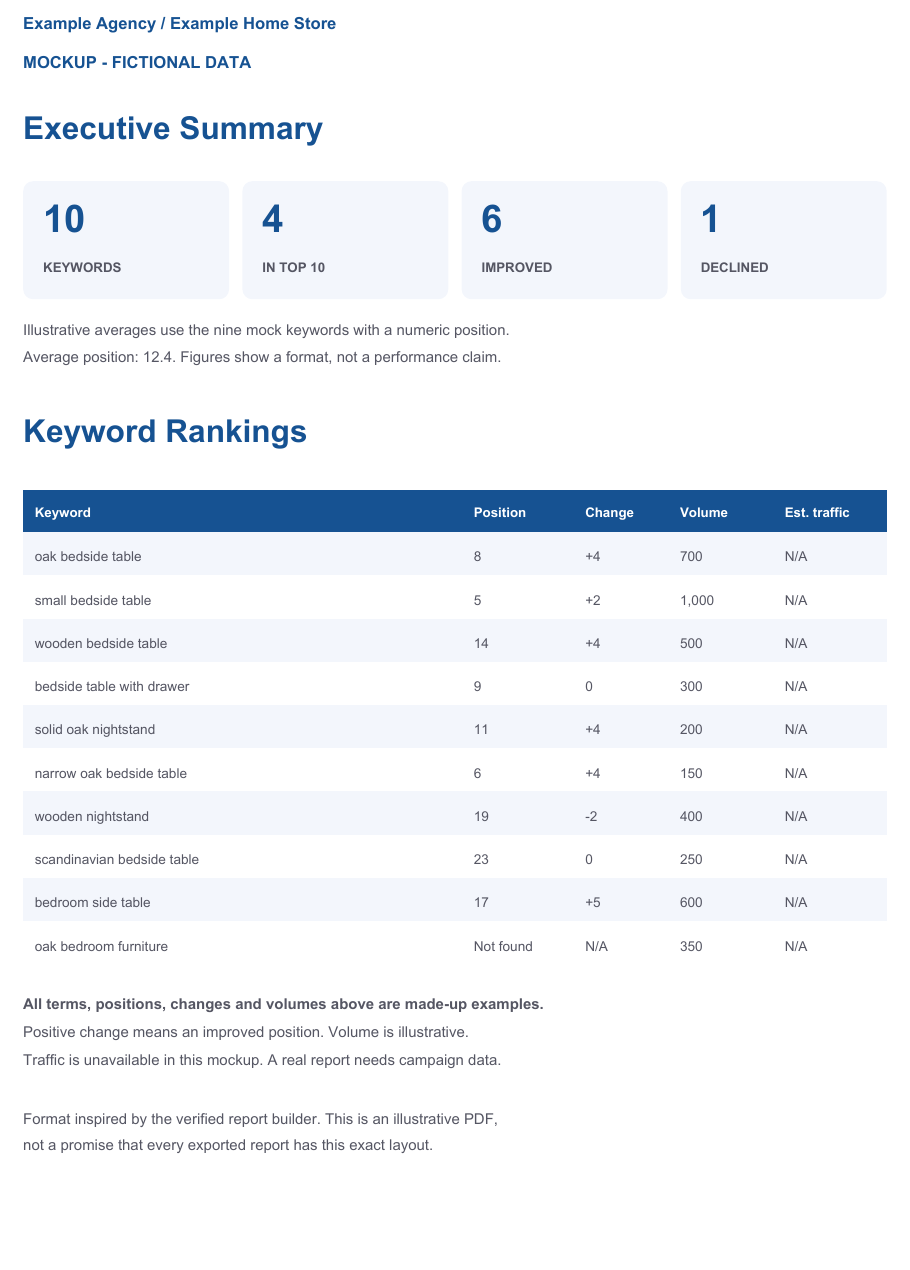
Mockup with made-up data. The PDF includes a fictional branded cover and this example report page.
Choose what goes into your client SEO report.
The report builder provides the sections below. What appears depends on the campaign’s saved information, connected accounts and completed checks. Choosing a section does not create missing data.
Rankings and competitors
- Executive summary
- Keyword rankings and ranking URLs
- Ranking trends within the selected period
- Available competitor information
Search and website checks
- Google Search Console / Bing search data
- Technical SEO metrics
- Recorded crawl findings
- Available domain authority metrics
Products and AI visibility
- Product SEO information
- Saved AI / GEO visibility snapshots
These sections depend on the relevant campaign work and checks. They do not promise a product’s rankings or inclusion in AI answers.
Before sharing: check the website, location, dates, connected data and empty sections. A report with no recorded crawl findings is not proof that a site has no issues. Search volumes and estimated traffic are estimates, not measured visits. Ranking movement needs comparable checks; a single baseline cannot show a trend.
Give clients a read-only SEO client portal.
A PDF is a document you can download and share. The client portal is a login where an invited client can view the campaigns and sections your agency grants. PDF section choices and portal sharing settings are separate controls.
Choose the view for each client
From Agency Team, choose specific campaigns and the sections the client can see: keyword rankings, SEO reports, results, AI answer visibility, products, content and social posts.
Use Manage access to adjust an existing client’s campaigns or sections, or revoke access when it is no longer needed.
Keep work and billing with the agency
The portal is read-only. Clients can view shared information and available report downloads. They cannot create campaigns, run credit-spending actions or change your agency billing from the client portal.
Client viewers and staff seats are different. Read-only client portal viewers do not count as the staff seats in your plan.
Example: a focused reporting view
Illustrative sharing choice: share one campaign, enable Rankings and SEO reports, and leave Products, Content, Social, Results and GEO hidden if they are outside that client’s reporting scope.
Preview the portal as the client to verify the result. This example describes the sharing controls; it is not an interactive portal or a screenshot of client data.
Ask Robert to show PDF sections and client portal permissions during your free demo.
Make the next client conversation easier.
Use the report as a starting point for explaining the work. Your agency adds the context: what changed, what the available evidence means, and what to prioritise next.
1. Check the campaign
Confirm the website, tracked keywords and location. Review the latest saved checks and connected search data. Resolve gaps before treating figures as current results.
2. Preview the report
Apply your agency branding, choose a period and select relevant sections. Check the PDF preview for missing values and whether the evidence supports your explanation.
3. Share and explain
Download the PDF or use the report builder’s email option. Give portal access to selected information, then discuss priorities and next actions with the client.
Branded reports and client portals are included in the paid plans shown on our pricing page. Research refreshes, ranking checks and other campaign actions can use credits. Check the displayed cost before running new actions; exporting a report does not refresh every data source.
Reporting and sharing controls checked on 4 October 2026. Available information varies by campaign setup and completed work.
White-label reporting questions, answered.
What are white-label SEO reports?
They are SEO reports presented with your agency’s branding. In Seller’s Bay you can configure the agency name, logo, contact details, report colours and footer text, with an option to hide the Seller’s Bay powered-by line on reports.
Which information can I include?
The builder offers executive summary, keyword rankings, ranking trends, competitors, Search Console / Bing, technical SEO, crawl findings, product SEO, domain authority and AI / GEO visibility. The selected campaign needs saved or connected data for useful values to appear.
Can clients edit the campaign through the portal?
No. The client portal provides a read-only view of shared campaigns and sections. Clients cannot create campaigns, spend your credits on new actions or change agency billing through that portal.
Can I choose what each client sees?
Yes. Choose specific campaigns and client section toggles in Agency Team. You can manage an existing member’s access and preview the portal as that client. Portal permissions are separate from the sections selected for a PDF.
Do I need fresh checks before every report?
The export uses available campaign information. Check its dates and coverage before sharing. If you need fresh rankings, search information or other research, refresh the relevant data first and review any displayed credit cost. A PDF export alone is not a new ranking check.
Is the sample a client success story?
No. The downloadable PDF and images are clearly labelled mockups. The agency, store, keywords and all figures are fictional. They illustrate report branding and selected sections, without using Seller’s Bay’s or a client’s rankings.
How can I see the reporting tool before choosing a plan?
Book a free personal walkthrough with Robert Long, CEO of Seller’s Bay. Ask to see agency branding, report sections and the read-only client portal. The demo is separate from an app trial and does not require an app account to book.
See your client reporting workflow with the CEO.
Bring an example of what your clients need to understand. Robert will walk through report branding, PDF sections and client visibility, and help you see how reporting fits the rest of your campaign work.
Free personal walkthrough · One-hour booking · Bring your reporting questions
Explore Seller’s Bay’s SEO features, see how the workflow fits together, or contact us with a question.